Eprint Part and Page Count Template
Completion of this template is only required for publishers offering ePrint versions of their music with J.W. Pepper.
Navigate to the bottom of the Bulk Product Upload page.
Select Download Bulk Upload Templates
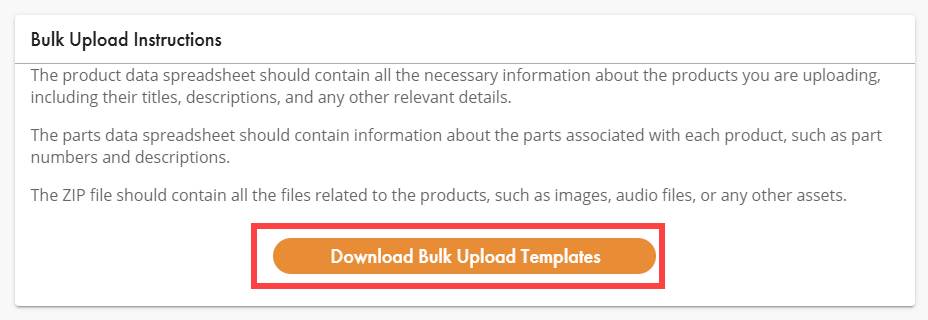
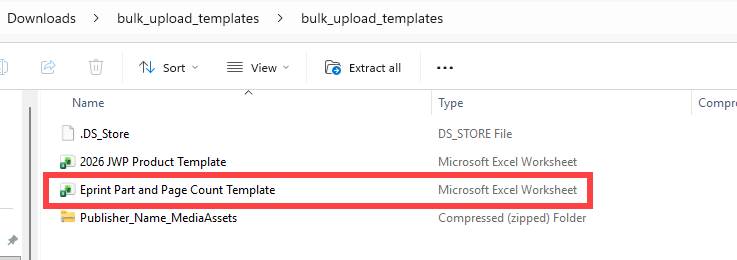
Download the Zip file bulk_upload_templates and unzip.
Open the file bulk_upload_templates contained inside.
Open the Eprint Part and Page Count Template
Enable Editing on the spreadsheet
Fill in the details in all columns of the spreadsheet.
- Multiple products can be added to the same sheet
Title: Enter Full Title of item. Leave out uncommon punctuation such as <>()/öñ etc.
Sequence: Use 0 for Individual pieces, for instrumental sets start with 0 for the score, increasing sequentially for each additional part matching your file name.
- If entering new items, please match the sequence to the eprint file name
Pepper Number: A Pepper Agent will fill in this upon receipt
Publisher Sku: Enter the Publisher Product ID
Part Count: How many copies of each part come with the purchase
Page Count: How many pages are contained in this part?
Part Name: What is the type of part. Ex. SATB, Score, Flute 1. Use common names without symbols or punctuation.
Part Price: What is the cost of the purchase or an individual part. Example Score: 8.00, Flute: 3.50.
Parts Sold Separately (Y/N): For instrumental sets only – Do you want us to sell an individual part? Y if you do not want us to sell individual parts N

You can put multiple items on a single tab in your spreadsheet
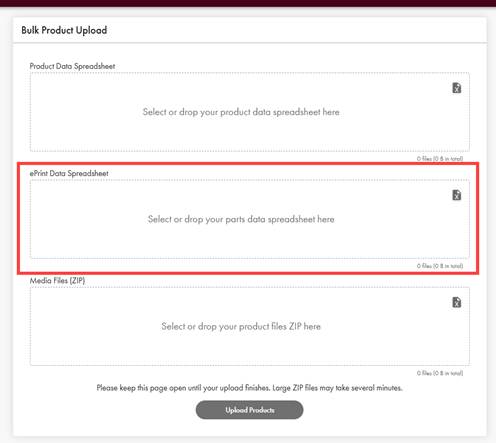
Once your spreadsheet has been completed Save and upload it into the ePrint Data Spreadsheet area of Bulk Product Upload
See Bulk Media and Asset File Instructions files to complete your submission.
Was this article helpful?
That’s Great!
Thank you for your feedback
Sorry! We couldn't be helpful
Thank you for your feedback
Feedback sent
We appreciate your effort and will try to fix the article